PhoneBurner Setup
(You might have to be logged in to PhoneBurner).
Set up your PhoneBurner account to streamline the the process.
Also, Set up Your PhoneBurner Account to work with your Virtual Assistant.
Introduction
- Objective 1: Setting Up PhoneBurner
- Objective 2: PhoneBurner Support and Resources
- Time: 10 Minutes
Subscription to PhoneBurner
If you do not have a subscription to PHoneBurner, use the link below.
InheritedData PhoneBurner Link
- Benefit: 20% Discount on your subscription.
- Benefit: Customized Fields and Import Templates Included
- Benefit: PhoneBurner Tailored to InheritedData
Adding a Team Seat → Go HERE
Customizing PhoneBurner
1. Choosing the Right PhoneBurner Plan
Purpose: Choose the right PhoneBurner plan that best suits your needs.
- Standard Plan: Not Applicable with InheritedDataVA
- Professional: Investor provides Call ID.
- Premium (Recommended): Dedicated Caller ID + Texting
 Click the your Icon in the upper right hand corner.
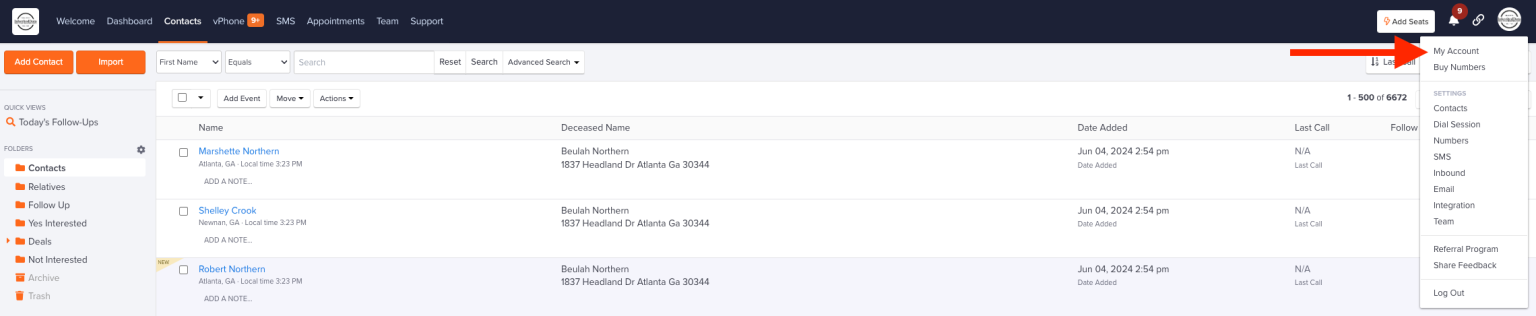
The click "Account" in the Dropdown.
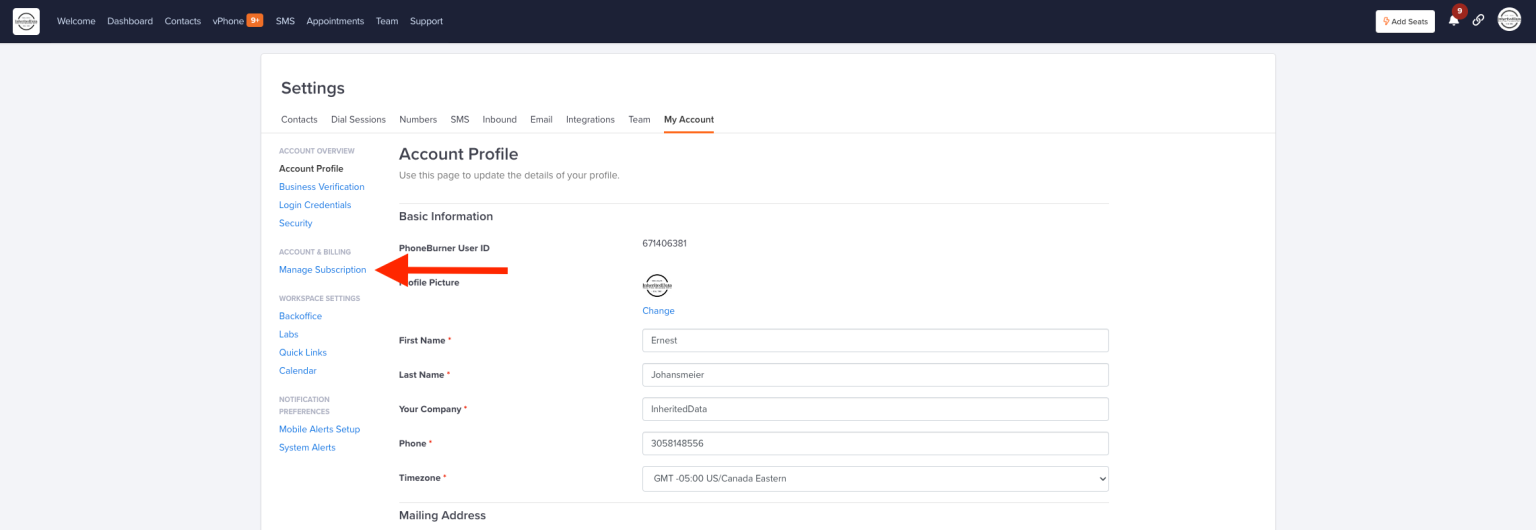
Next click “Manage Subscription” in the middle of the page on the left.
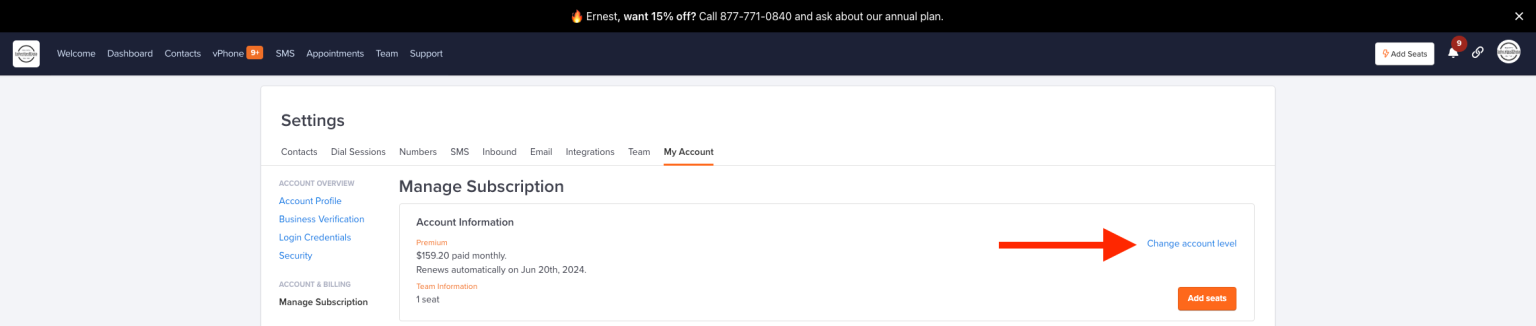
Then click “Change account level” Choose either Professional or Premium versions.
2. Layouts
Define Custom Layouts: Tailor the Interface to match InheritedData workflow needs.

Contacts → Gear Icon the right → Click Layouts.
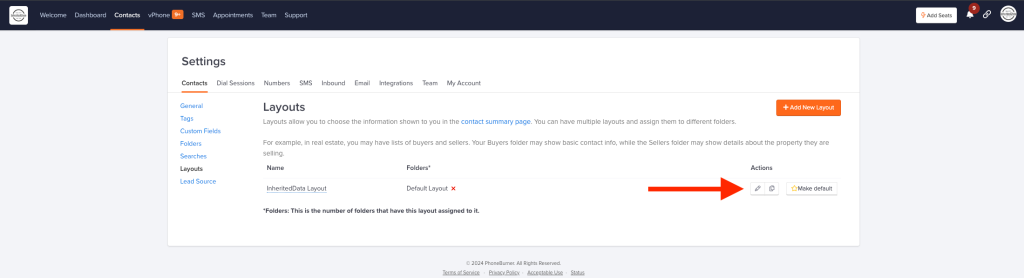 Click Pencil icon to modify the layouts.
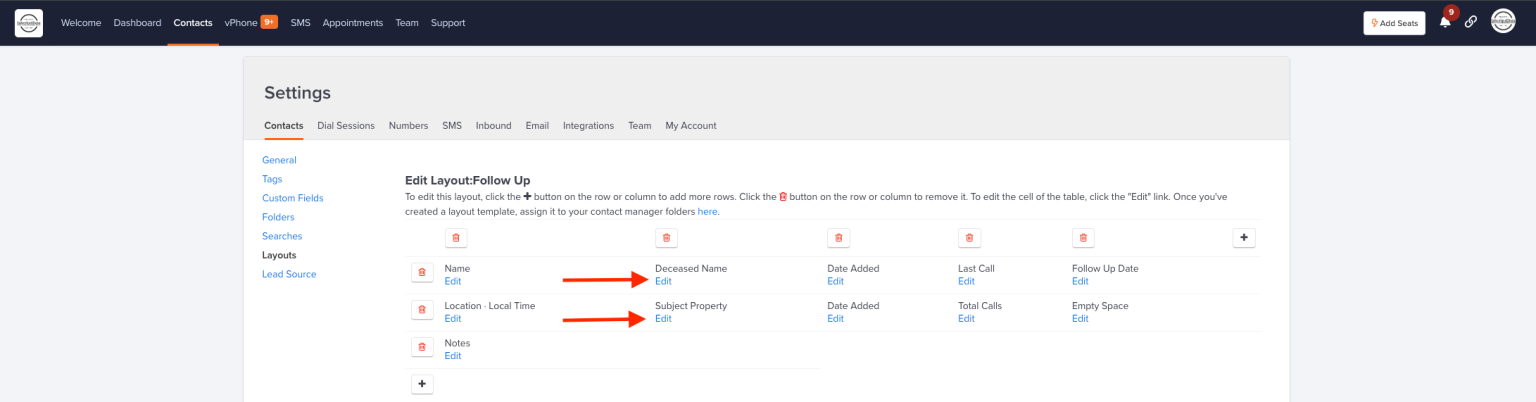
Click the “Edit” button to change your layout to mirror the layout above.
3.Set Default Layout in Folders
Benefit: Set Default folder are the contact folder. When the user clicks "Contacts", this is the default folder that is accessed.
 Contacts -> Gear Icon on the right -> click Folders.
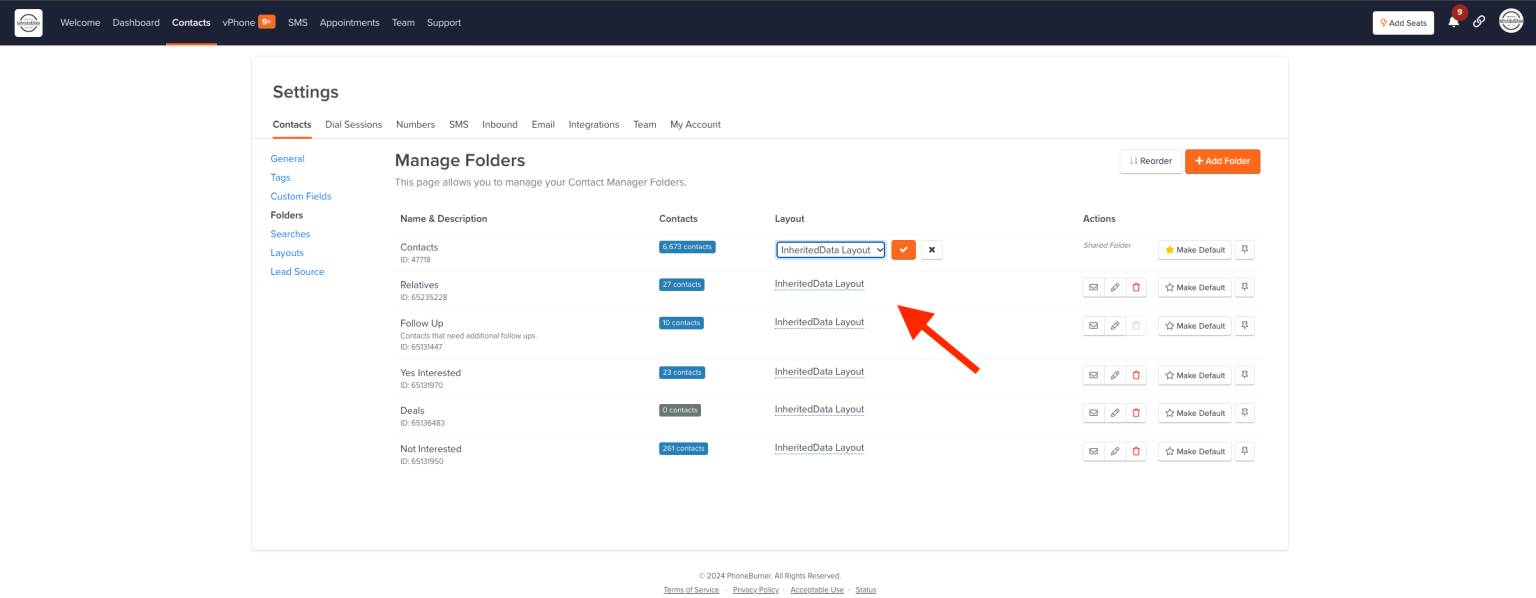 Select Layout using the dropdown for each folder.
4. Default Folder
Organize Contacts: Setup default folder as the Contacts folder.
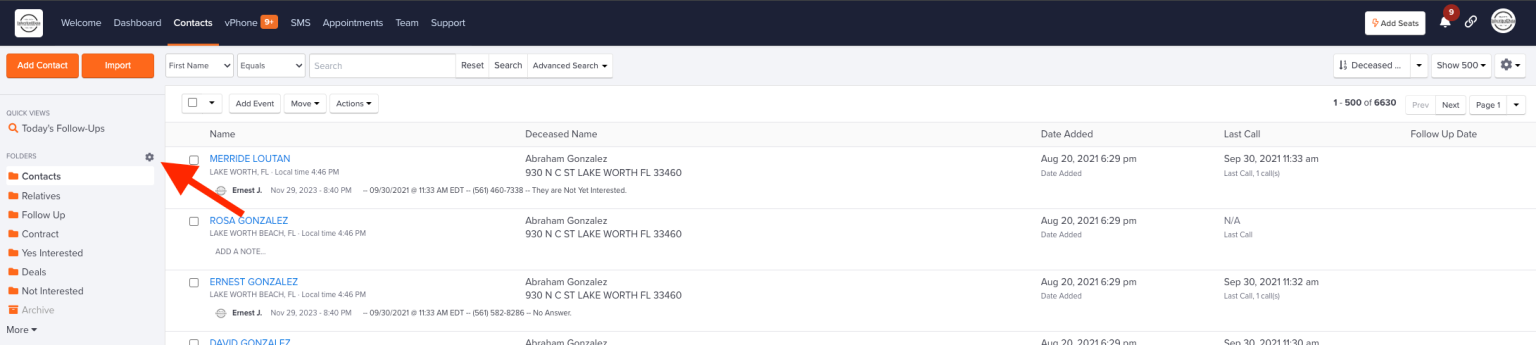
Click the Gear Icon to the right of the folders → Select "Manage Folders".
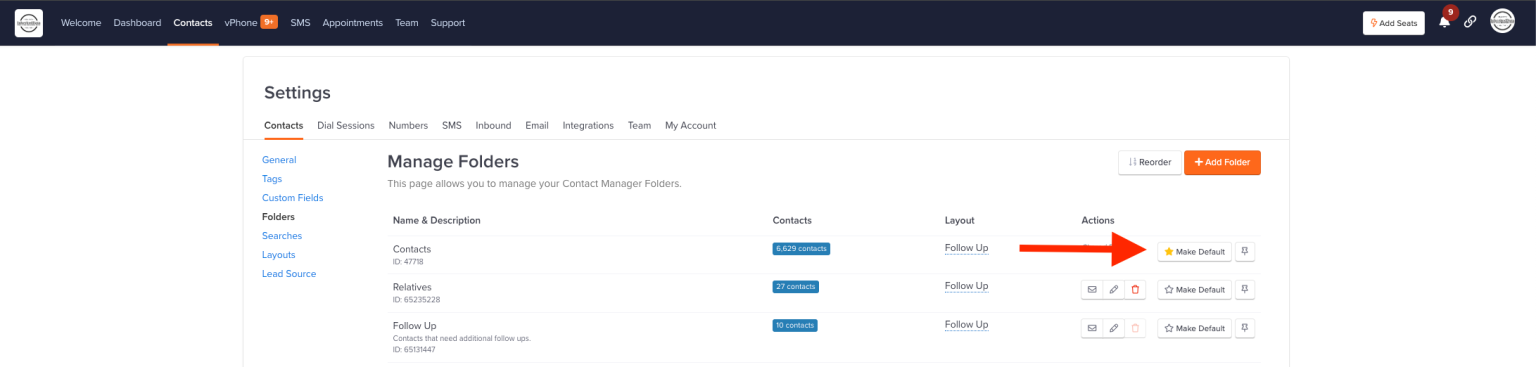
Click the “Make Default” to highlight star to yellow making this folder the Default Folder.
5. Display Contacts First
Prioritize Contacts: Ensure that contacts folder is displayed prominently for quick access.

Click Gear Icon the right of the page near the top -> Then click “General”.
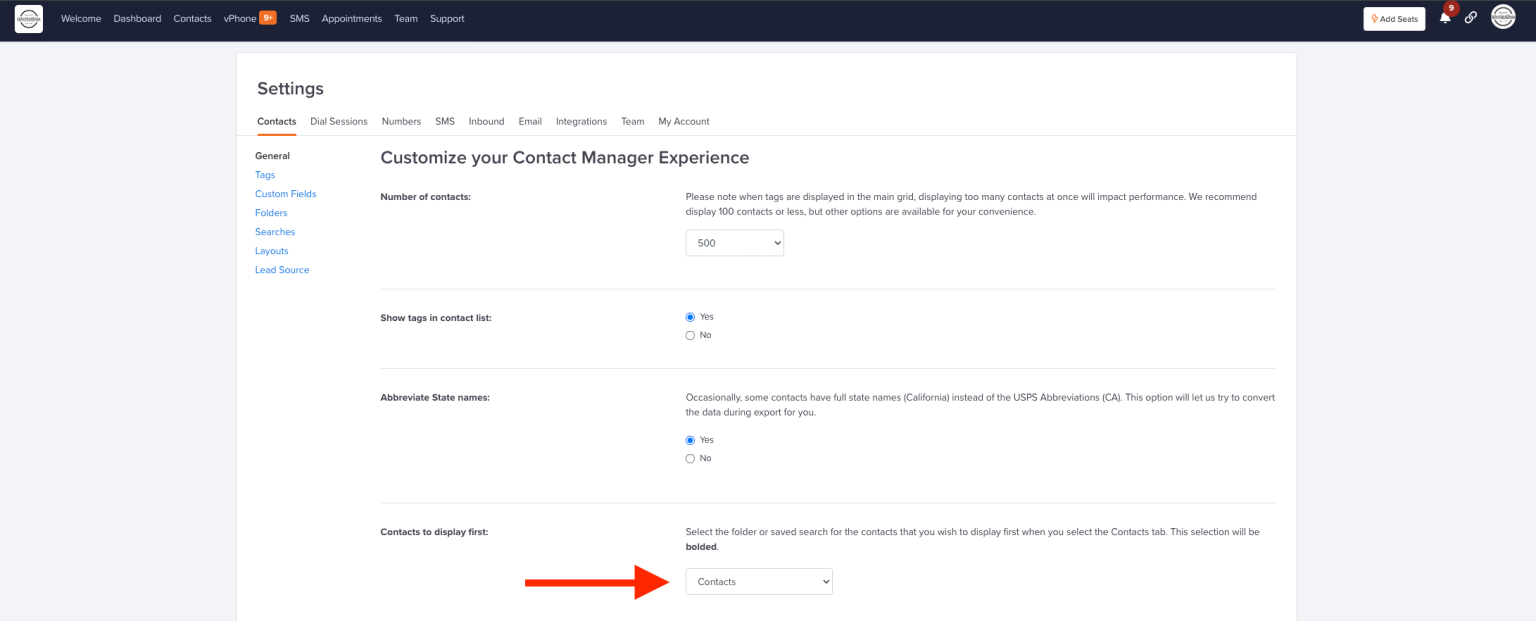
Select “Contacts” in the dropdown. This will display the Contacts Folder First.
6. Record Voicemail Drop
Efficiency: Record a standard voicemail drop to save time on repetitive tasks.

From Contacts Page, Click Gear Icon on the top right. Select "General" in the Dropdown.

Click “Dial Sessions”.
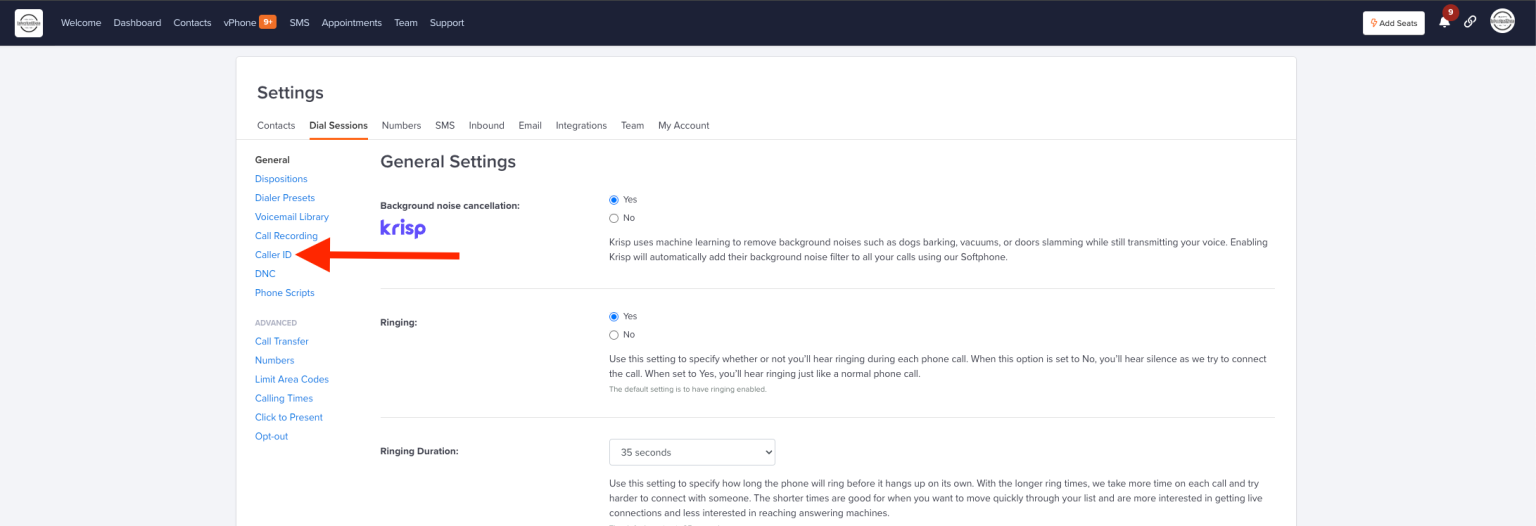 Select “Voicemail Library”.
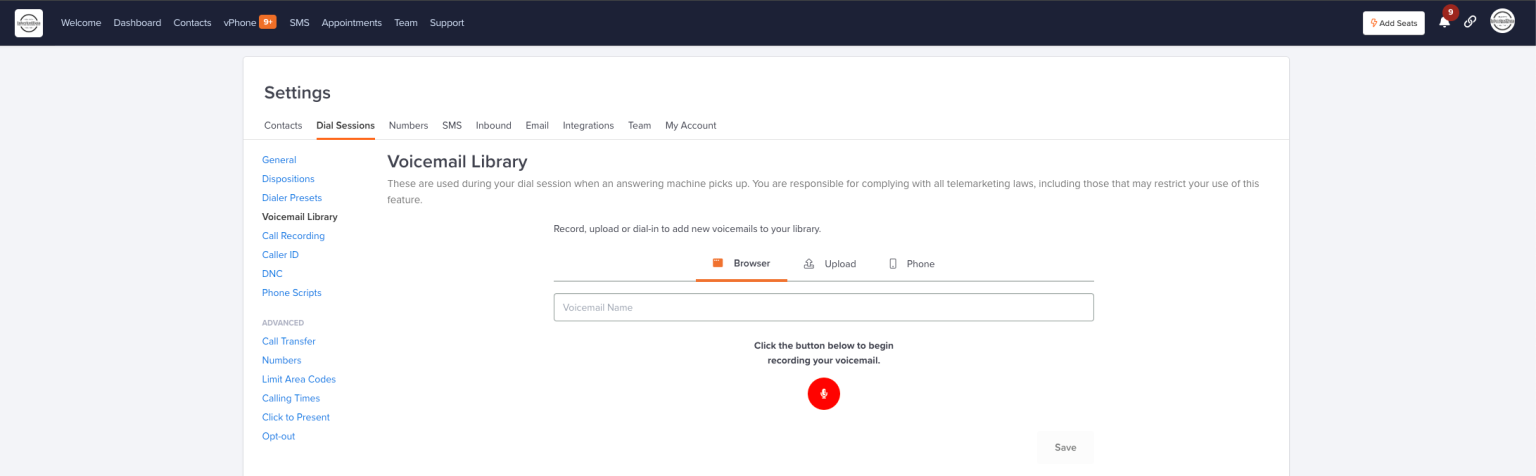
Record your voicemails for voicemail drop.
Make a Message.Vague is best to stir up curiosity.
“Hi my name is {your name}. I am calling about your property, please call me back at {phone number}.”
7. Email Templates
Consistency: Set up email templates to maintain two touch points per each
outbound communication. Emails are triggered by dispositions.
 Click Gear from the contacts Page on the top right. Select “General” in the dropdown menu.
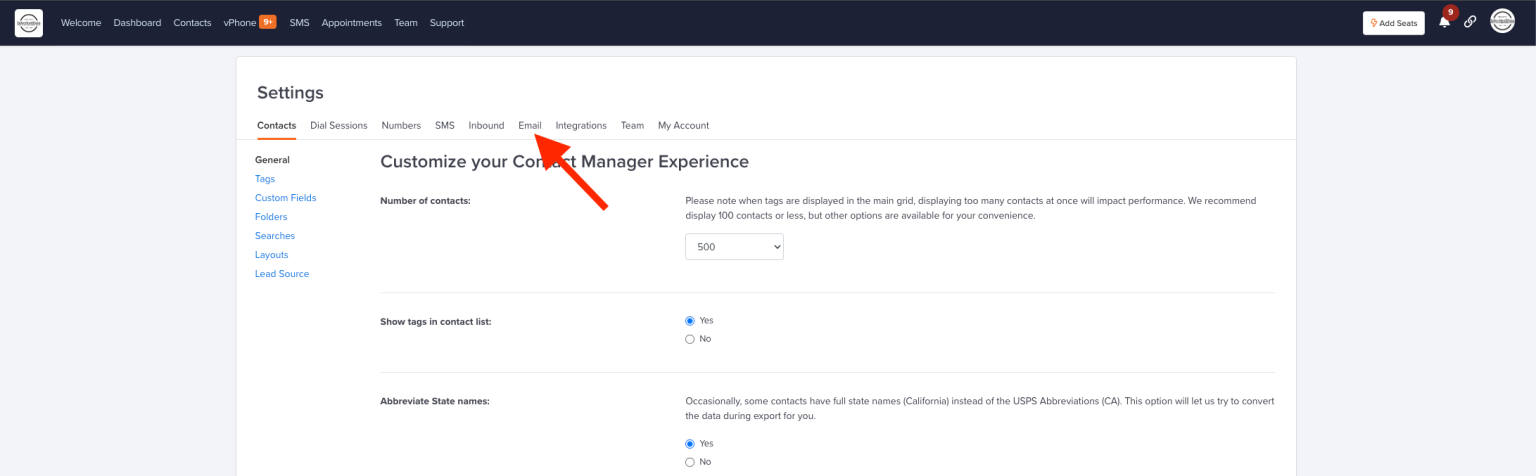 Click the “Email” tab at the top of the page under settings.
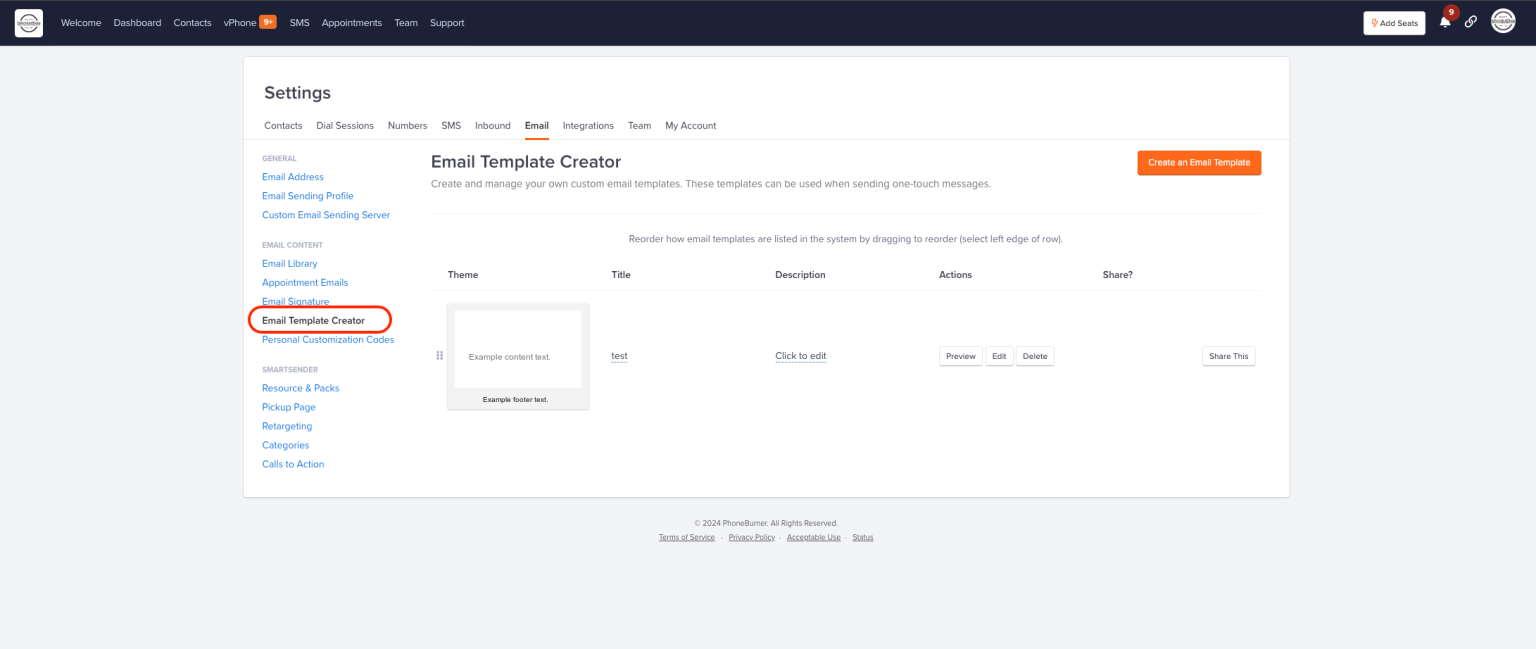 Create Custom Emails in this section.
Tip: In this section to create custom emails. You can duplicate the original template and
then modify them, click system content to find the default emails.
8. Recorded Calls
Review: Ensure calls are recorded for quality control and training purposes.

In the upper right hand corner, click the gear icon and select “General”.

Next Click “Dial Sessions”.
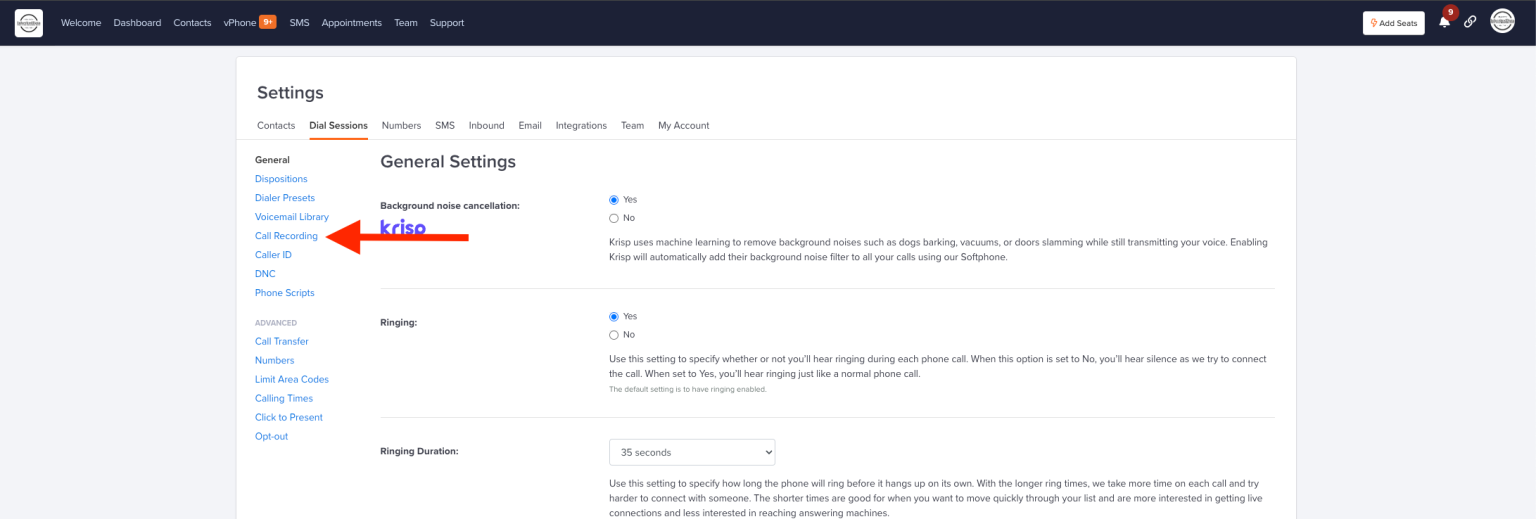
Then Click “Call Recording”.
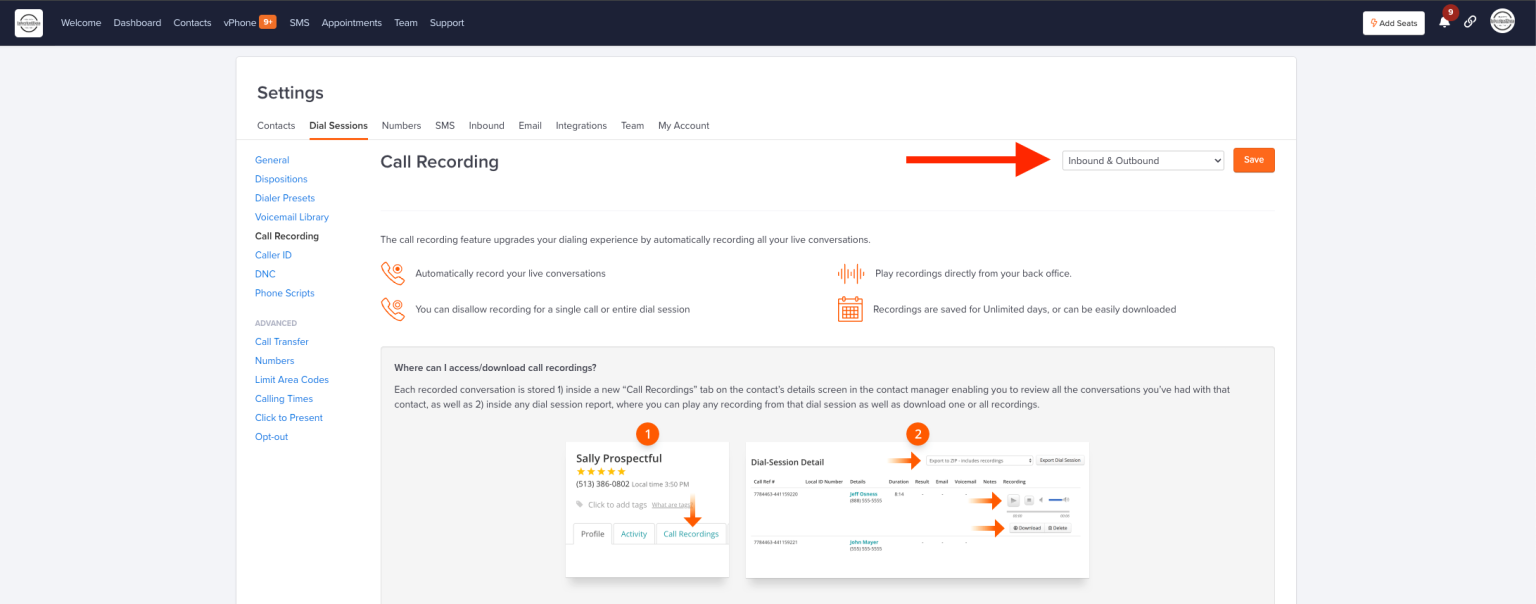 Make Sure the Inbound & Outbound are selected from the dropdown.
9. Reports
Analyze Data: Utilize reporting features to track performance and outcomes of your cold outreach team.

For Activity Reports, Click “Team” tab at the top of the page.

Click “Reports” to access the Cold Outreach Activities.
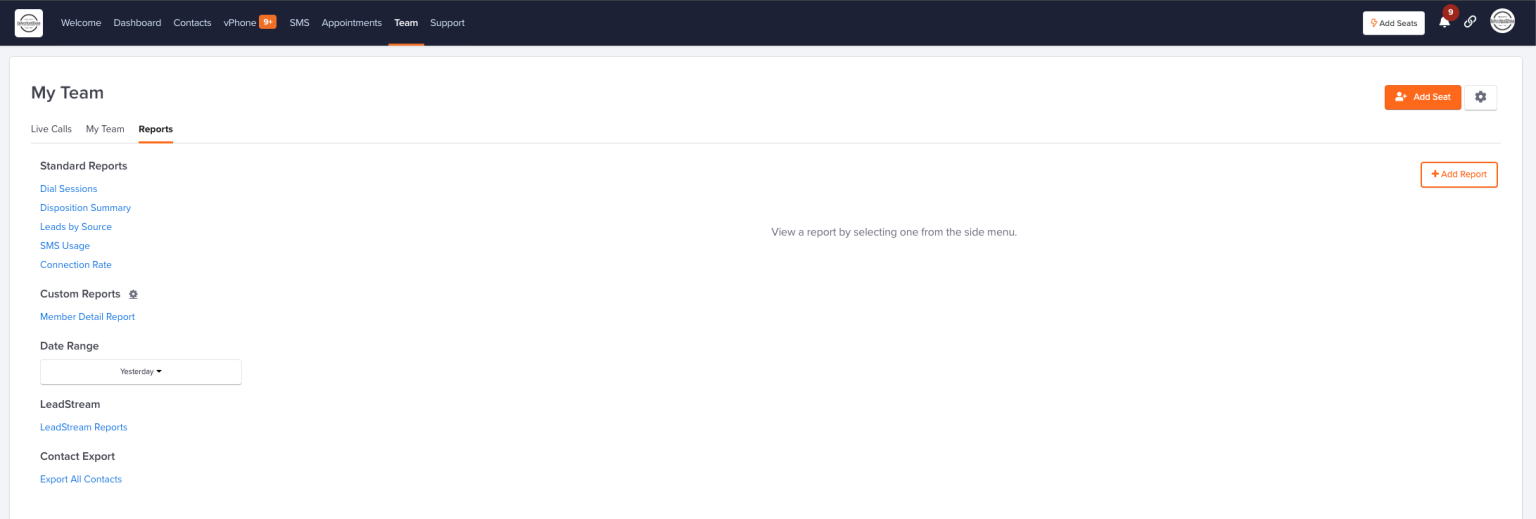
Here you can filter by date and access all activity reports.
Support and Resources
1. Support Quick-Start
Access: Support Quick-Start Training.
Purpose: Quick-Start videos will help get your PhoneBurner all set up for maximum productivity.
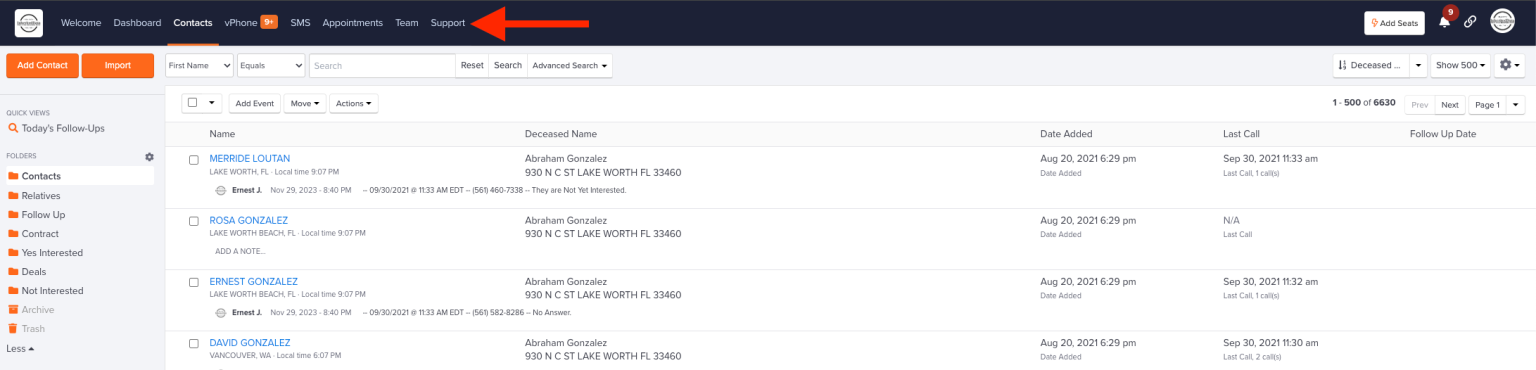 At the top of the screen, click “Support”.
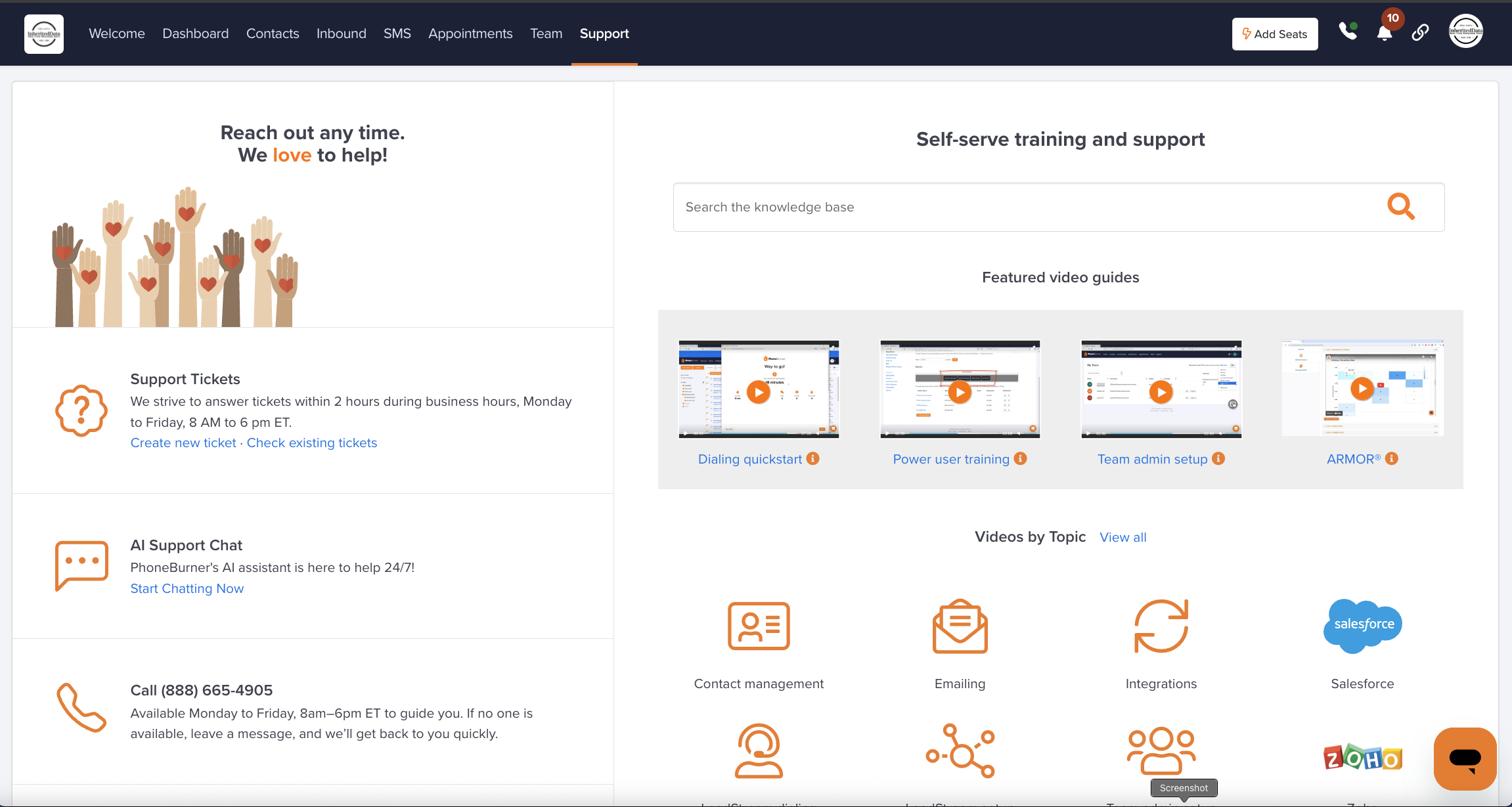
In the center of the screen find “Videos By Topic”, then click “View All”.
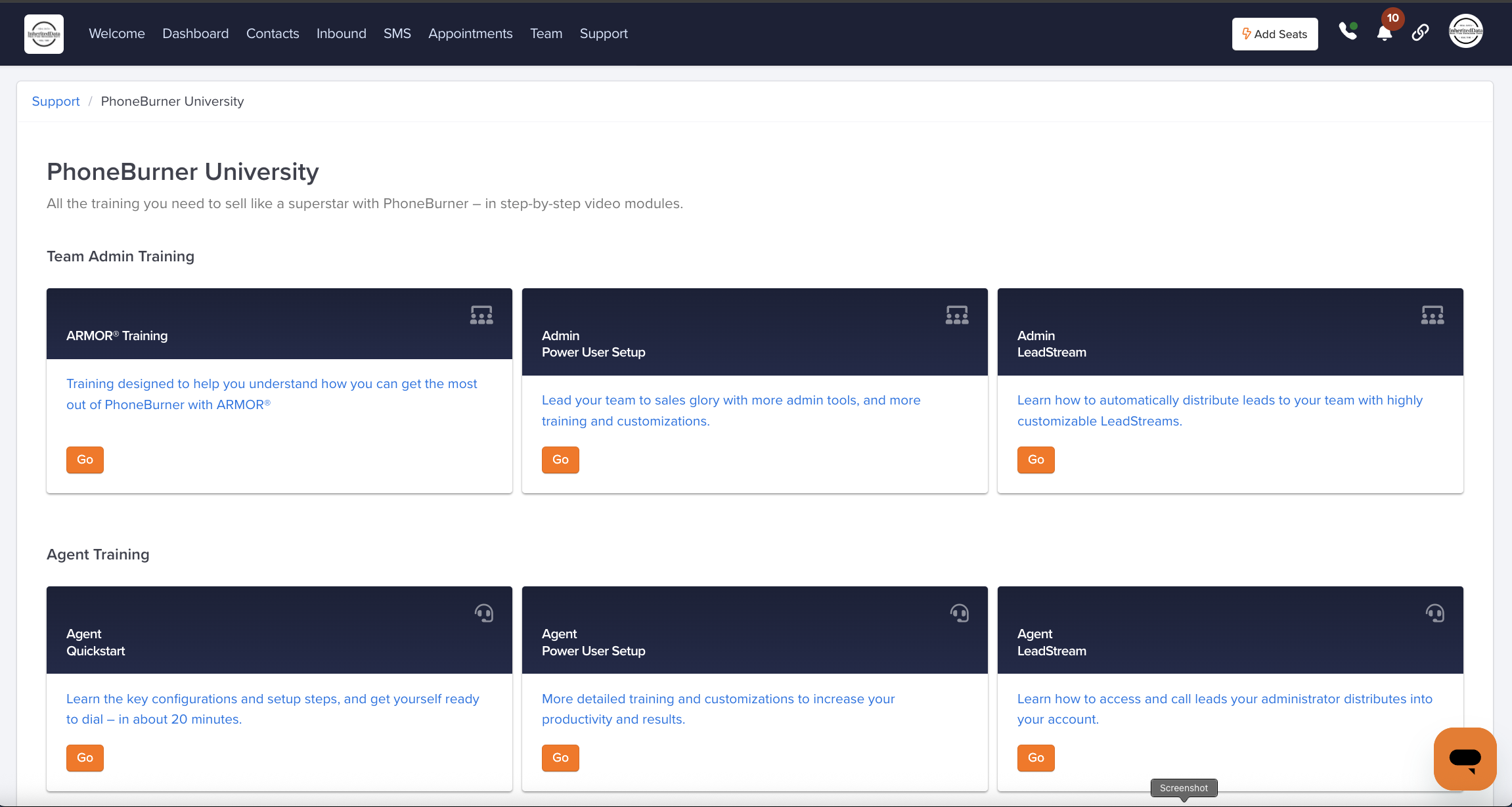
Each one of these modules have short videos that will direct you to setup your PhoneBurner Account properly.
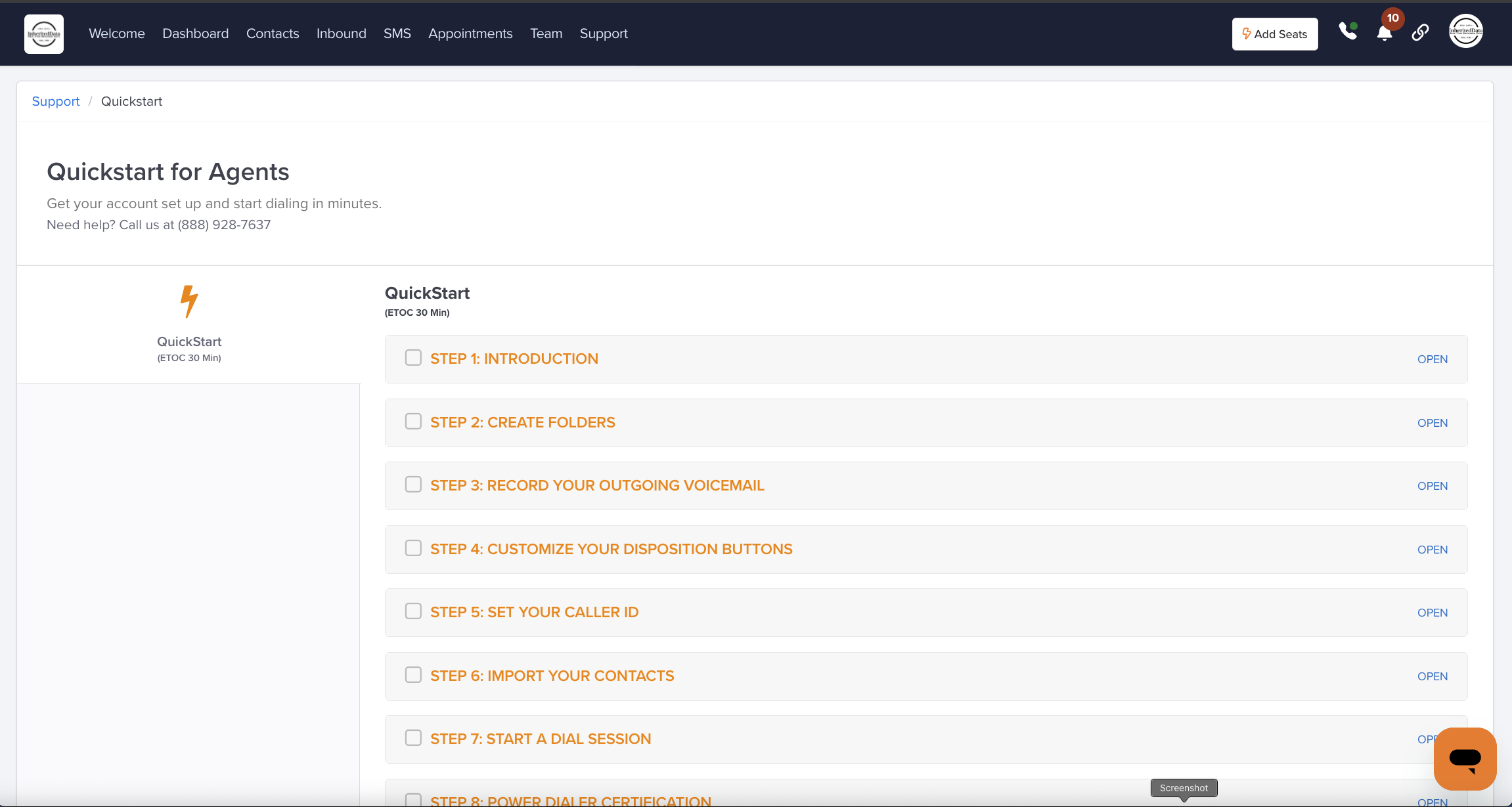 Each Video is short, you can quickly learn each module.
Set Up for Your Virtual Assistant
Was this article helpful?
That’s Great!
Thank you for your feedback
Sorry! We couldn't be helpful
Thank you for your feedback
Feedback sent
We appreciate your effort and will try to fix the article