Virtual Assistant Setup for PhoneBurner
Setup your PhoneBurner Account to work with your Virtual Assistant.
Also learn best practices when working with a virtual assistant.
AccessPhoneBurner Knowledgebase HERE
Introduction VA Setup
Objective 1: Setting up PhoneBurner Admin Account.
Objective 2: Upgrading Phoneburner for soft phone and inbound.
Objective 3: Working with your Virtual Assistant.
Time: 10 Minutes.
Setup Admin Account → PhoneBurner Team Dialer Seat
More Detailed Admin Setup →Team Admin Setup Up
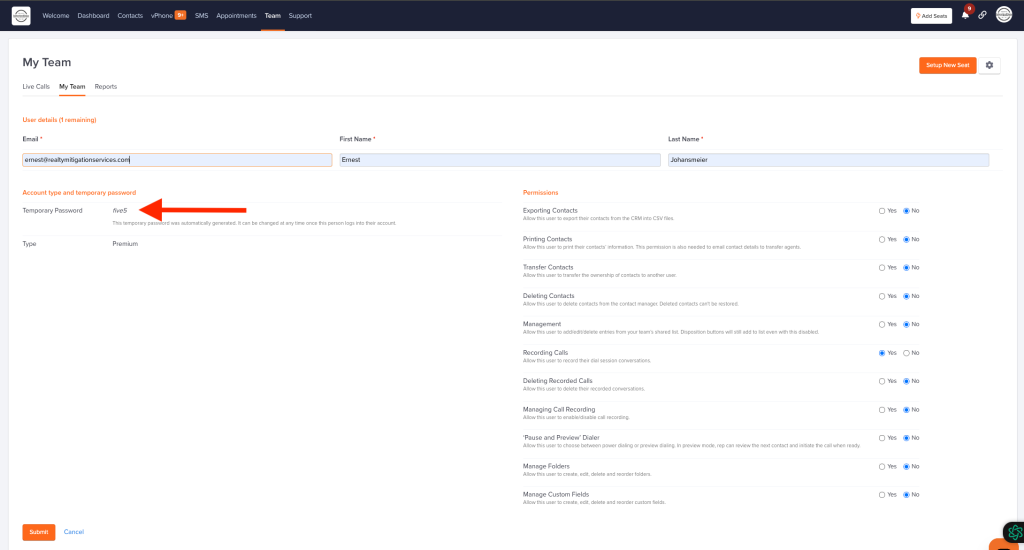
1. Invite Your VA to PhoneBurner
Purpose: Your Virtual Assistant needs to be able to login to their seat in order to make calls.
 Click “Team” at the top of the page.
 Next click “Setup New Seat”.
2. Share InheritedData Records
Purpose: Control which records or all records to share with your VA.
 Click “Team” at the top of the page.
 In the upper right corner, click the gear icon.
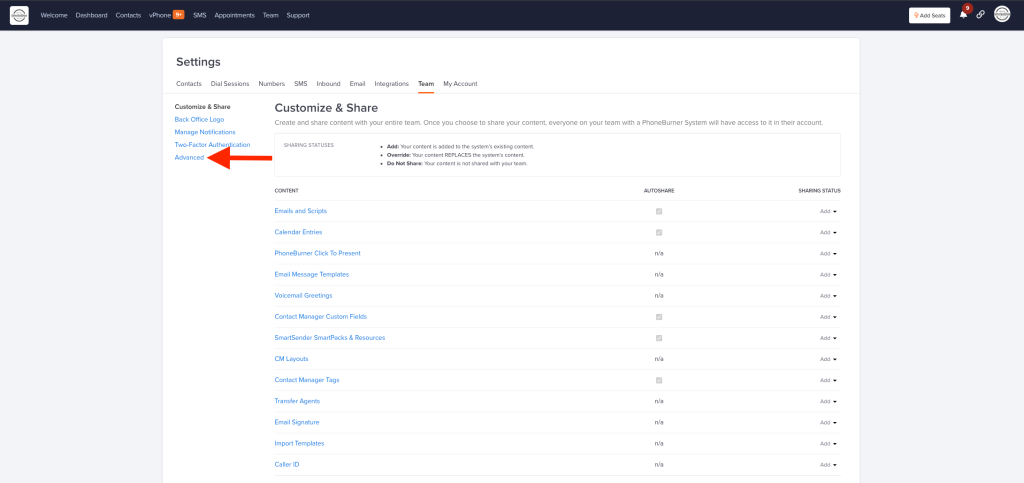 On the left side of the screen, click “Advanced”.
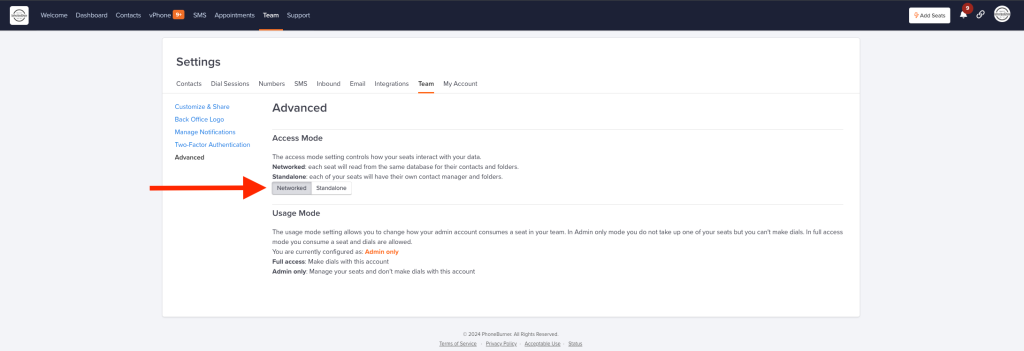 Select “Networked” to share all your InheritedData Records that have been upload to your PhoneBurner Account.
3. Caller ID
Purpose: Select a Caller ID that will be displayed while dialing from PhoneBurner.
How to Verifying Your Caller ID.
 Click Gear Icon in the upper right hand corner.
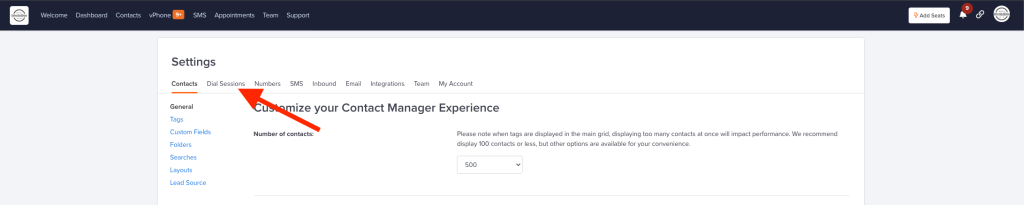 Next click “Dial Sessions”.
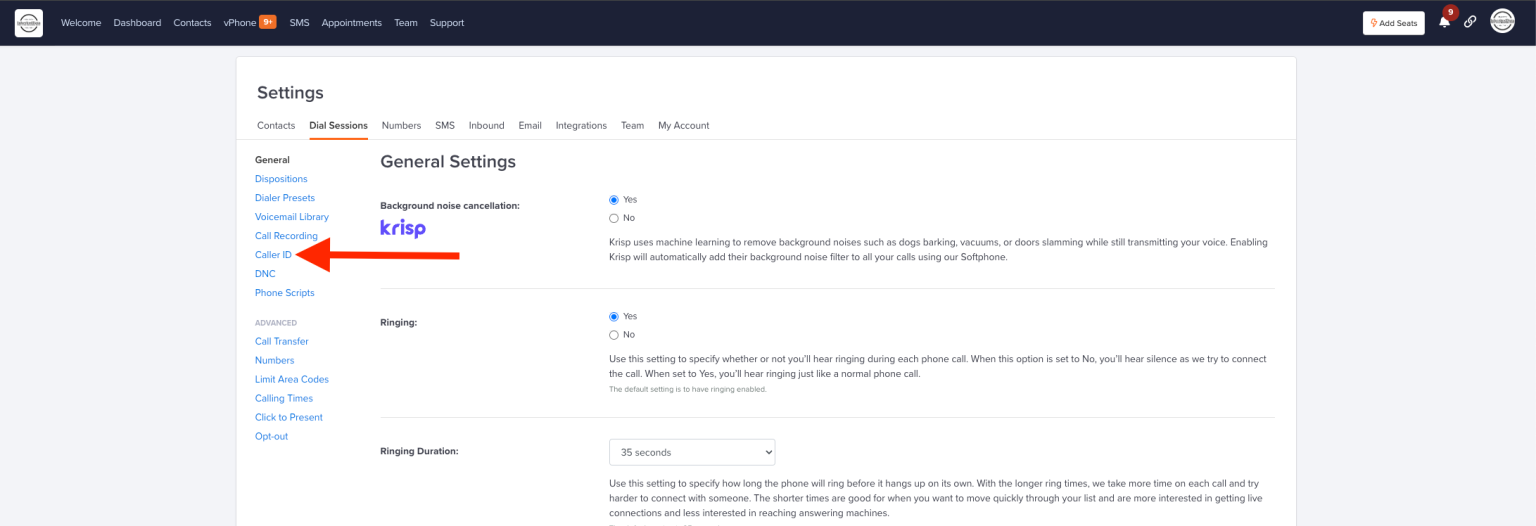
Click “Caller ID”.
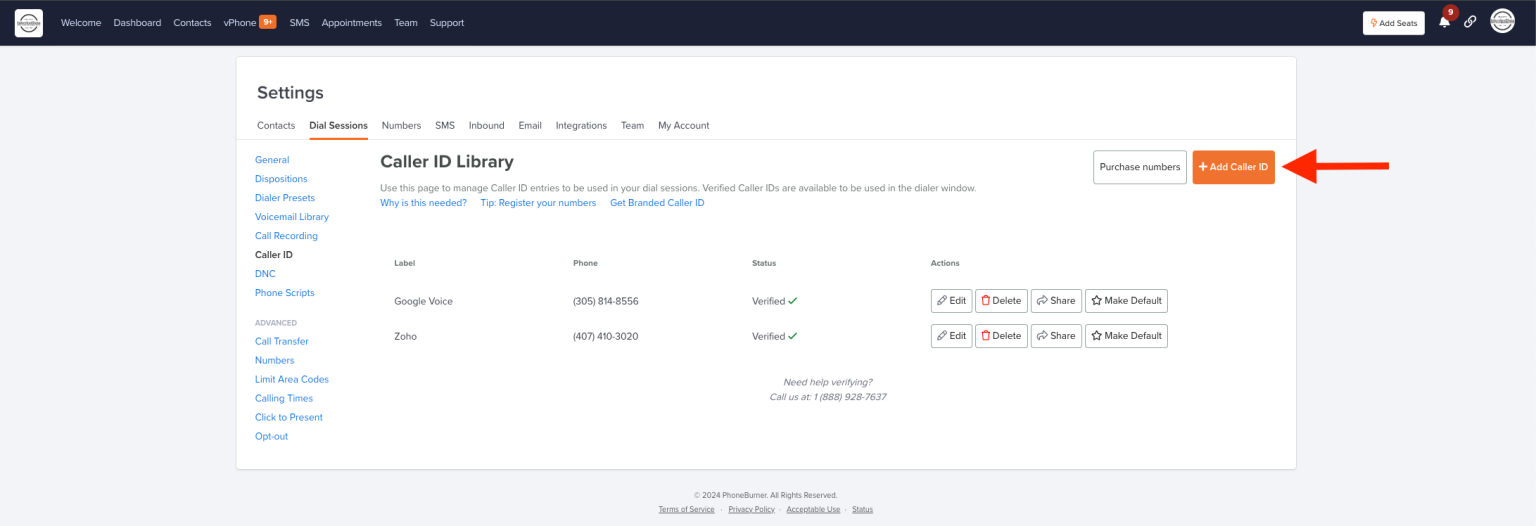
In the upper right hand corner, click “Add Caller ID”.
This Caller ID will be verified through PhoneBurner before it is active.
4. Share Caller ID with Your VA
Purpose: The Caller ID that is displayed when Your VA is Calling, Caller ID has to be shared for VA to have Access.
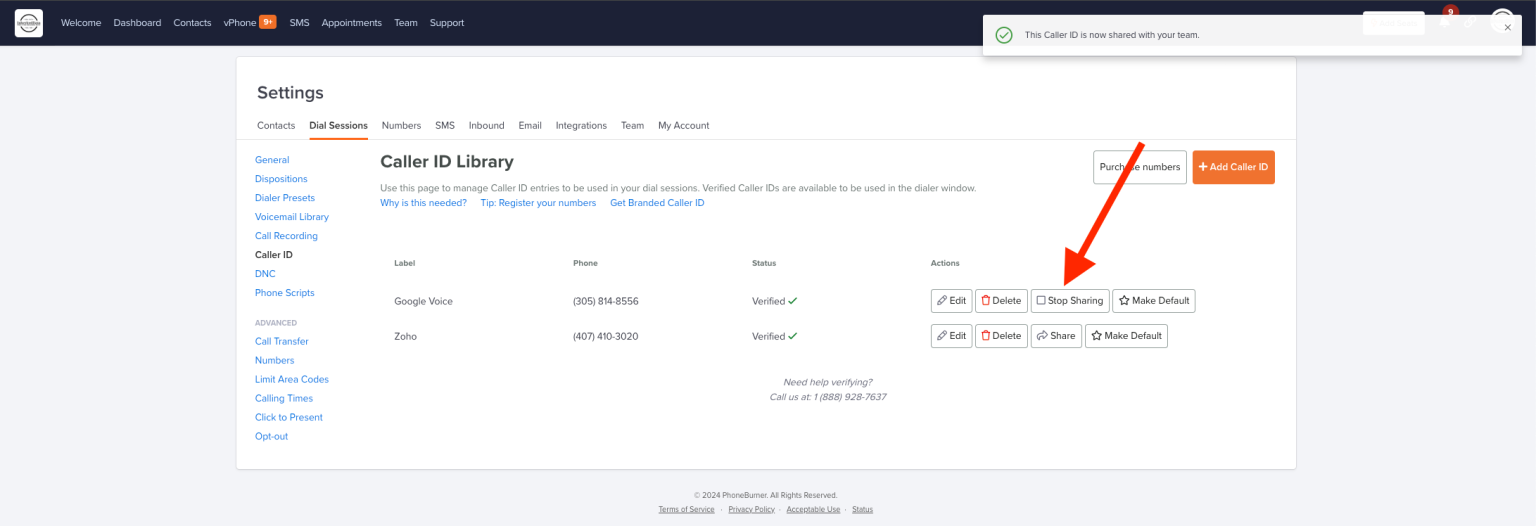 Click the “Share” button to start sharing your verified Caller ID number.
5. Professional or Premium Plans
Purpose: Your InheritedDataVA needs to be able to make calls using the web browser. Professional an Premium Version offer browser dialing, as opposed to dialing into the system via cell.
Upgrade: It is necessary to upgrade to the Professional version to make outbound calls via web browser.
The Premium (recommended) gives the ablity to also receive inbound calls with dedicated Caller ID.
 Click the your Icon in the upper right hand corner.
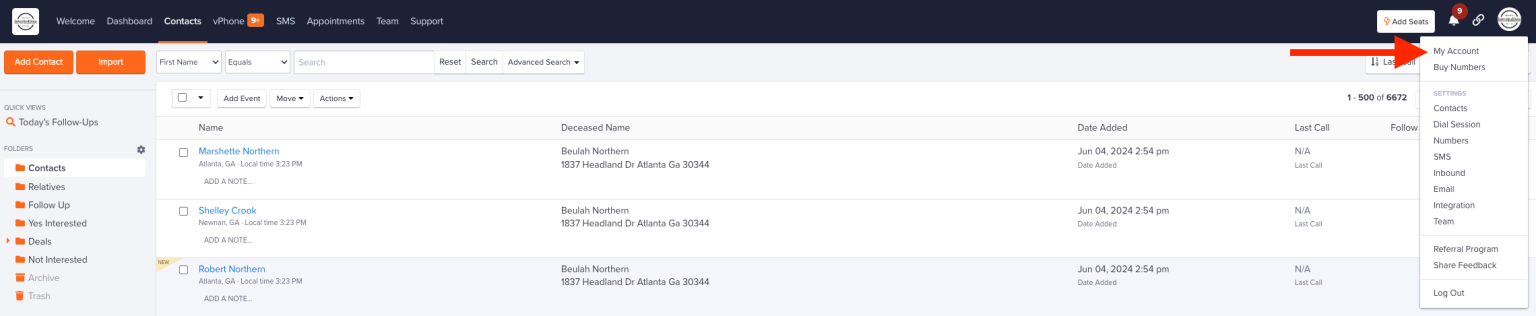 Then click “Account” in the dropdown.
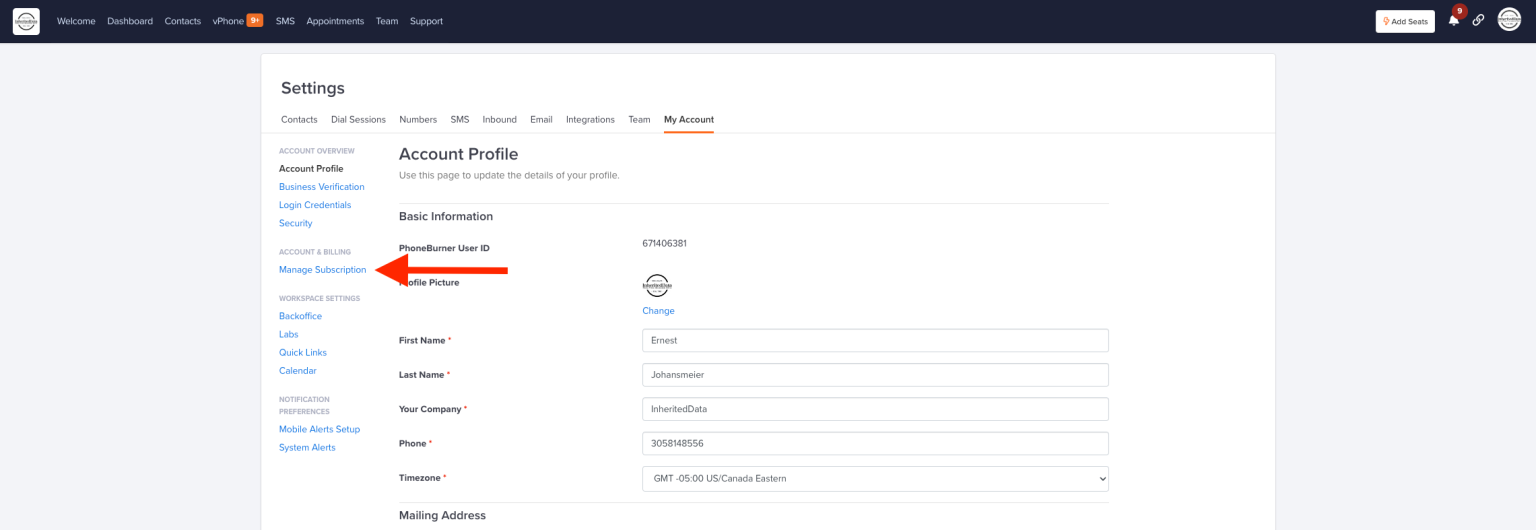 Next click “Manage Subscription” in the middle of the page on the left.
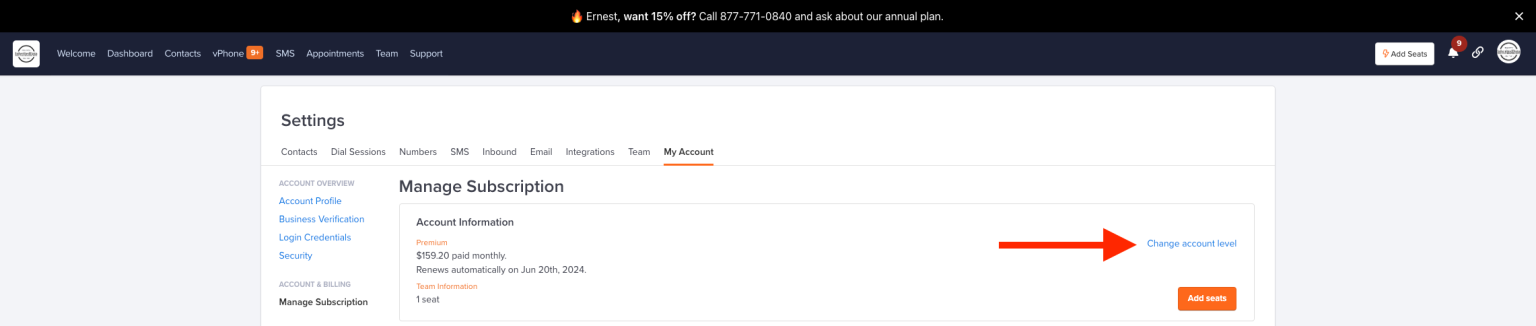 Then click “Change account level” Choose either Professional or Premium versions.
6.Who Does the Follow Ups?
What to Say When Your VA Has Made Initial Contact
Workflow: Access the PhoneBurner Folders to follow up with your prospects.
Who does the Follow Ups: Follow Ups are performed by the Investor, Broker, Agent, Assistant, Acquisition Manager, Inherited Home Specialist, etc..
The InheritedDataVAs are trained to find leads. A pipeline of leads is a powerful thing, as it creates consistency and a multitude of deals. The VAs do not do follow-ups. Follow-ups are performed by the Investor. This gives you the opportunity to develop a relationship with the potential Seller. Follow-Ups are opportunities, they are not ready to sell today, but may be ready in the future. They might have a problem that needs solved or need to get some things in order before they are ready to sell. You will be notified is a several ways when you have new leads in your pipeline.
Was this article helpful?
That’s Great!
Thank you for your feedback
Sorry! We couldn't be helpful
Thank you for your feedback
Feedback sent
We appreciate your effort and will try to fix the article