Adding a Team Member to your PhoneBurner Account
More Detailed Admin Setup → Team Admin Setup
From PhoneBurner Website:

PhoneBurner provides several options to assist Team Administrators in managing their team.
Two of the most frequent changes made to a team setup include adding a dialing seat for a new user, which may be necessary when a new team member has joined, or removing a dialing seat, which might occur if a team member leaves the team or the company.
You may also Suspend a user, which will allow the seat to be reassigned to another user.
Note: Suspending a user does not remove a seat from your billing, it allows you to re-assign it to another user. To stop being billed for a seat, you must first Suspend it, then Adjust Seats to remove it from your billing.
How to add a seat:
First, go to your "Team" tab and select the “My Team” submenu.
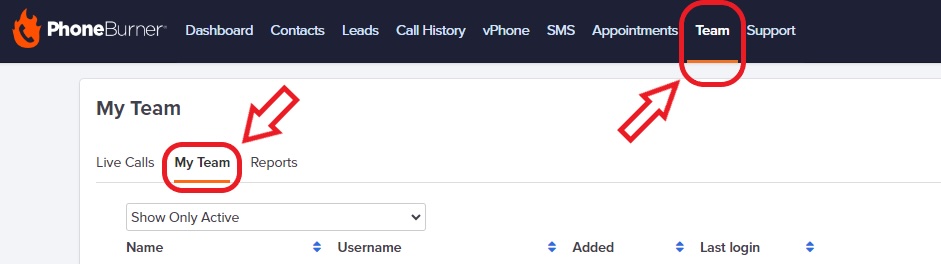
Next, click on "Add Seat".

Next, please fill in the user data and click "Submit".
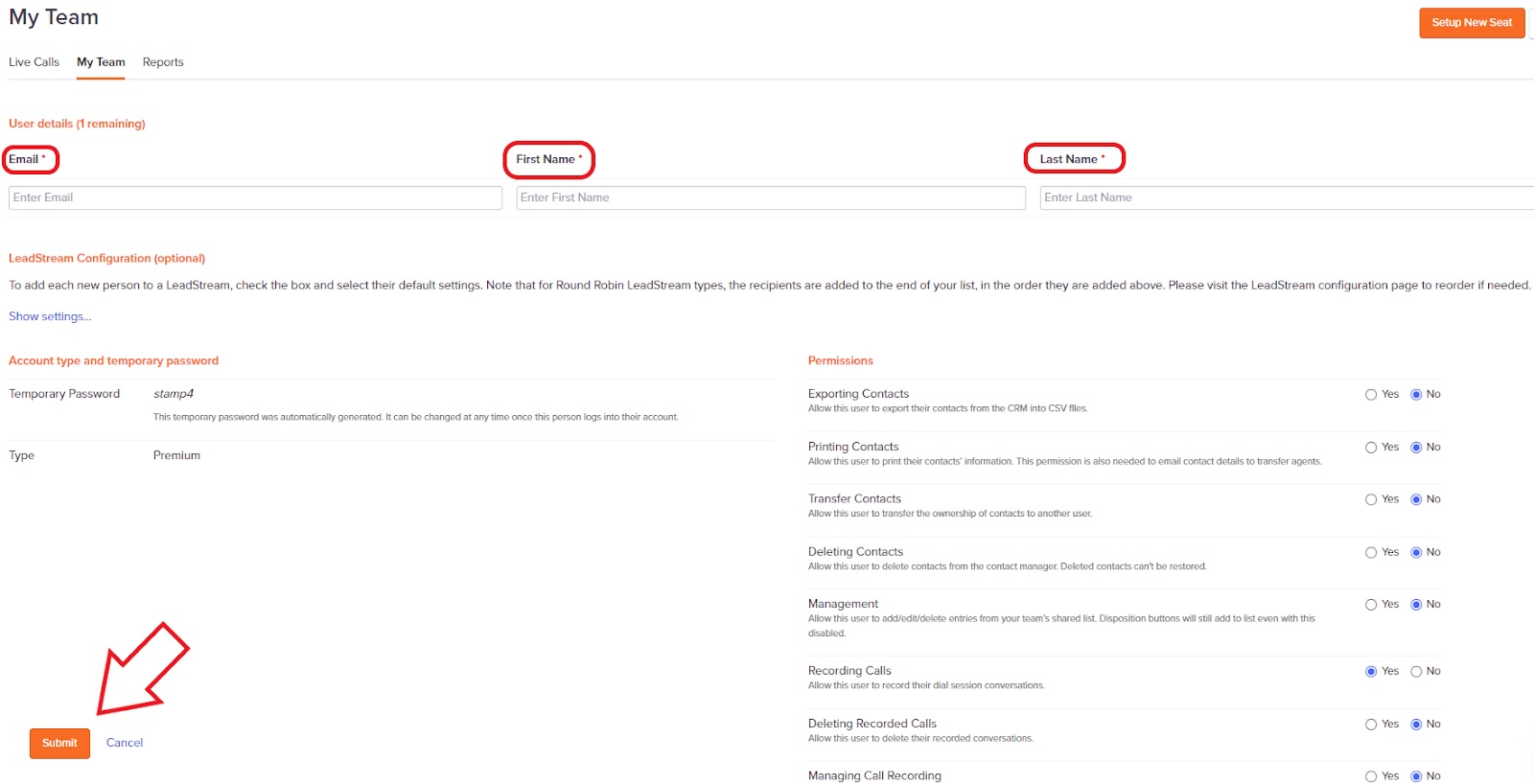
Note: New users require email, First, and Last Names. Always double-check the Permissions granted when adding new users.
The new user will now be populated and visible on your Team tab.
To Learn More → PhoneBurner Knowledge Base
Problems Adding Team Member?
If you are not able to add a new team member without being charged extra fees. Follow the Steps below.
Create Support Ticket: send a request to convert your account to Admin Account with Team Seat.
Purpose: Sets up a Amin Seat and a Caller Seat. Admin can monitor Caller activity.
Time: 24 Hours.
Steps
- Log into PhoneBurner
- At the top of the page, click "SUPPORT".
- Halfway down on the left. Click "CREATE A TICKET".
- Subject: Please convert my Account to Admin with Team Seat
- Body of Ticket: "Hello Support, Please convert my Account to Admin with Team Seat. Thanks!"
- Finish: Less than 24 hours you can add your team member.
Was this article helpful?
That’s Great!
Thank you for your feedback
Sorry! We couldn't be helpful
Thank you for your feedback
Feedback sent
We appreciate your effort and will try to fix the article